
Introduction
Every time I sit down for an Android app assessment, I open the same things for my setup:
- A scrcpy window so I can drive the phone with a mouse and keyboard.
- A terminal running
adb logcat | grep <package>. - Another terminal for
adb shell. - Burp for the proxy.
- Frida somewhere running
frida-serverover adb.
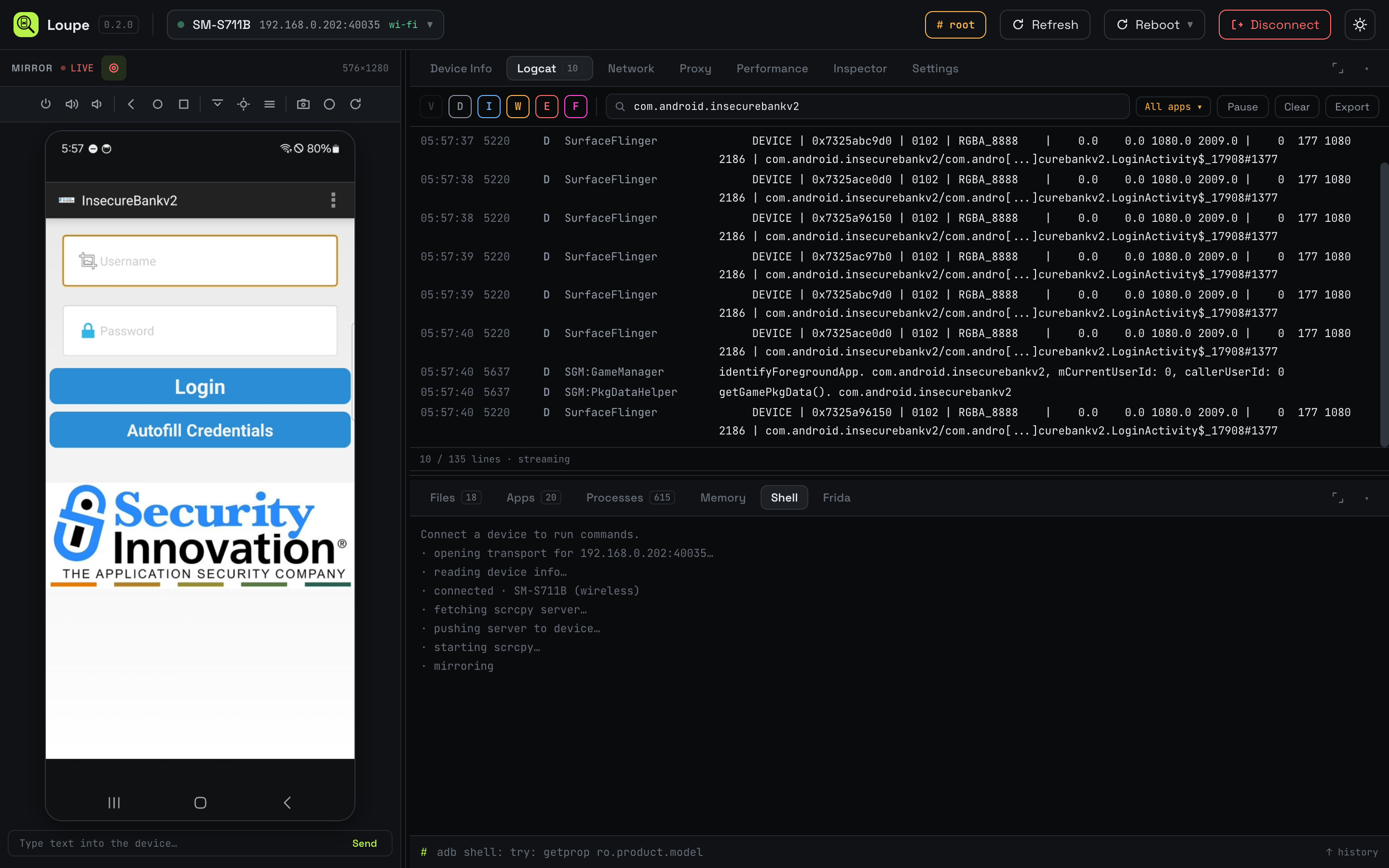
Multiple windows across two monitors gets old fast, and half of what I run at the start of every job is the same adb push, adb forward, adb reverse, pm install, cat /data/data/… dance. So I spent a few weekends building Loupe, which is an Android device control hub that runs entirely in a Chromium tab, talks to the phone straight over WebUSB, and puts the mirrored screen, logcat, file browser, proxy, and Frida side by side in one window.
I’ll use InsecureBankv2 as the demo app in this post, since it’s the classic “everything you shouldn’t do” Android target.
Here’s what the whole thing looks like:
If you’d rather see it move first, here’s a 40-second clip driving through the file browser, apps panel, and Frida target picker:
Why the Browser
The short answer: I got tired of installing things.
adb needs adb. scrcpy needs scrcpy. frida-tools needs a Python venv, which needs a working Python version this month. A junior on a fresh laptop can lose half a day to that.
Chromium has WebUSB, which lets a web page speak to a plugged-in USB device after the user picks it from a browser prompt. Yume Chan already ships ya-webadb, a full ADB implementation in TypeScript that runs on top of WebUSB, and a corresponding scrcpy client that decodes the mirror in the browser using WebCodecs. So the browser can already talk to the phone. It just needed a UI on top and a small local bridge for the two things WebUSB can’t do (Wi-Fi pairing over mDNS, and running frida-server from your machine).
The result is a project you can clone and use with no drivers, no desktop adb server, and no agent app on the phone.
git clone https://github.com/capt-meelo/loupe
cd loupe
npm install
npm run dev
Open http://localhost:5173 and you get a tab that looks like the screenshot above.
Connecting the Phone
Option 1: Over USB, turn on USB debugging and plug the phone in. Stop any desktop adb first since it holds the USB interface exclusively (adb kill-server is enough). Then pick “Connect a device over USB” from the header and tap “Allow USB debugging” on the phone.
Option 2: Over Wi-Fi, pick “Connect over Wi-Fi”. The first time, it asks you to pair with a code or a QR. After that, Loupe remembers the phone and you just click the entry. Wi-Fi mode needs adb installed on your machine because the local bridge uses it for mDNS discovery and pairing. USB mode needs nothing at all.
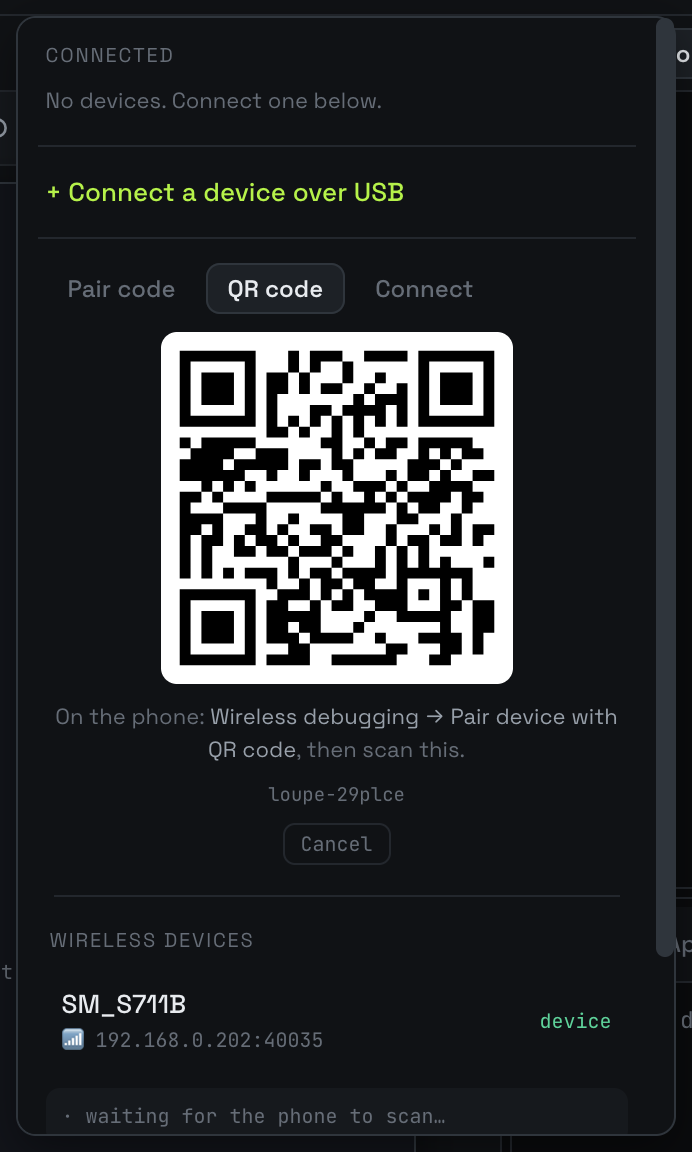
Once the phone is up, the header shows the model, the address, and whether root is available. On a rooted device, it lights a small # root chip in the header, and the shell prompt becomes # instead of $.

Two-pane workspace
Loupe splits the right side into a top and bottom tab strip. You can watch one panel while working in another, drag any tab from one strip to the other, and resize the divider between them. Any tab can also maximize to fill the pane.
In the shot above, the top strip is on Logcat and the bottom is on Shell. During a real assessment I usually keep the mirrored screen on the left, Logcat streaming up top, and swap the bottom between Files, Frida, and Shell as needed.
Screen Mirror
The mirror is scrcpy running through ya-webadb. It pushes the same server JAR that command-line scrcpy uses, then decodes the H.264 stream in the browser with WebCodecs. Touch, drag, swipe, scroll, the hardware keys, notification shade, rotate, and wake all work. A record button in the mirror toolbar drops a webm to disk with no time limit, so evidence for a report is one click away.

There’s also a small “Type text into the device” input at the bottom of the mirror pane. This is genuinely useful because typing a long test payload with an on-screen keyboard is misery.
Logcat
Live stream with per-level filters, text search, and an “app” filter that narrows to a package’s processes. Pause and export at any time.

The filter honors process boundaries, so hitting “com.android.insecurebankv2” narrows to the app and every child process it spawns. A lot of vulnerabilities in Insecure-style apps come down to something the app itself writes to logcat in plaintext, so this is the panel I open first every time.
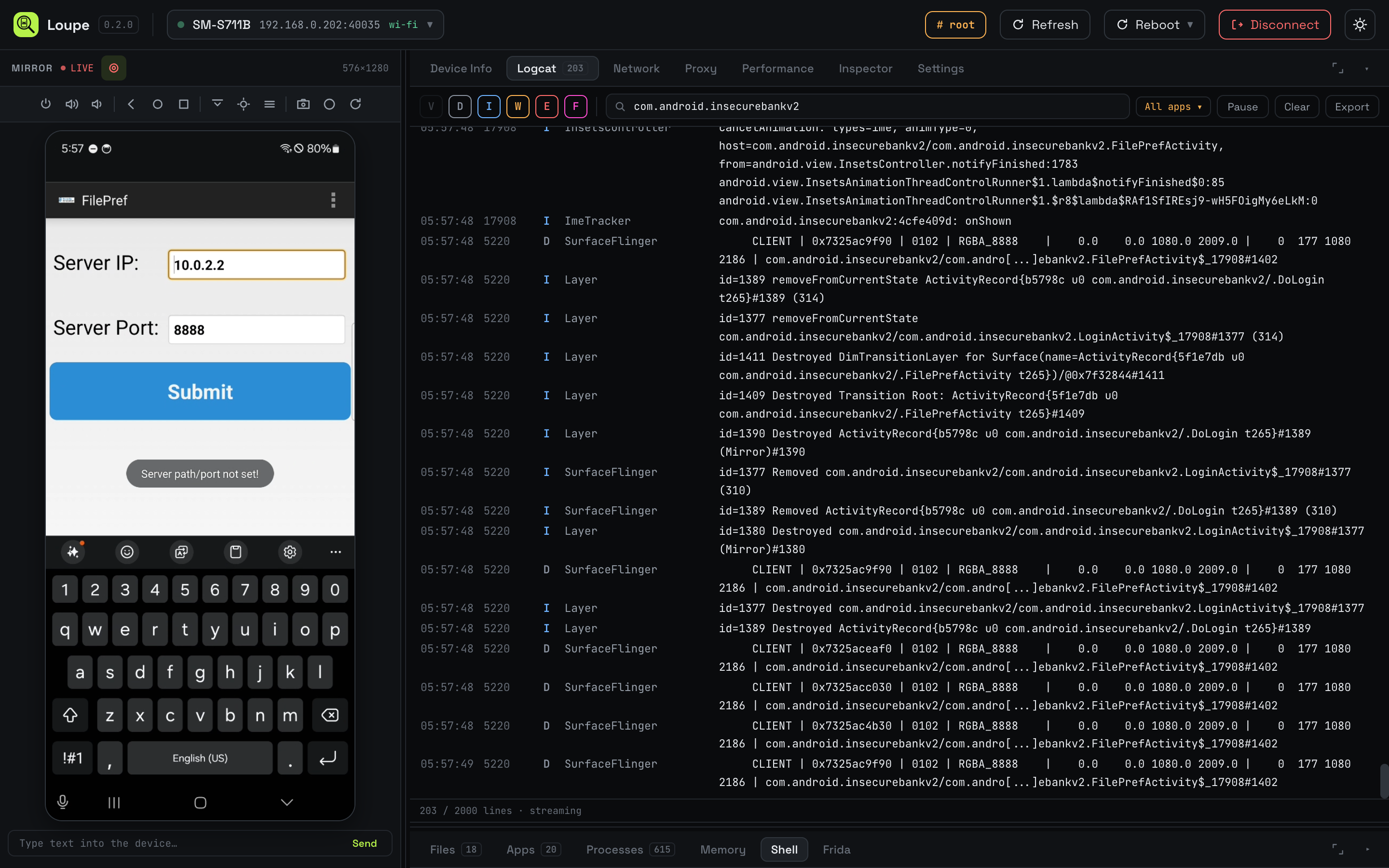
The counter at the bottom shows “203 / 2000 lines · streaming”, which is another thing I miss in a plain terminal: knowing how much of the buffer I’m looking at.
Files
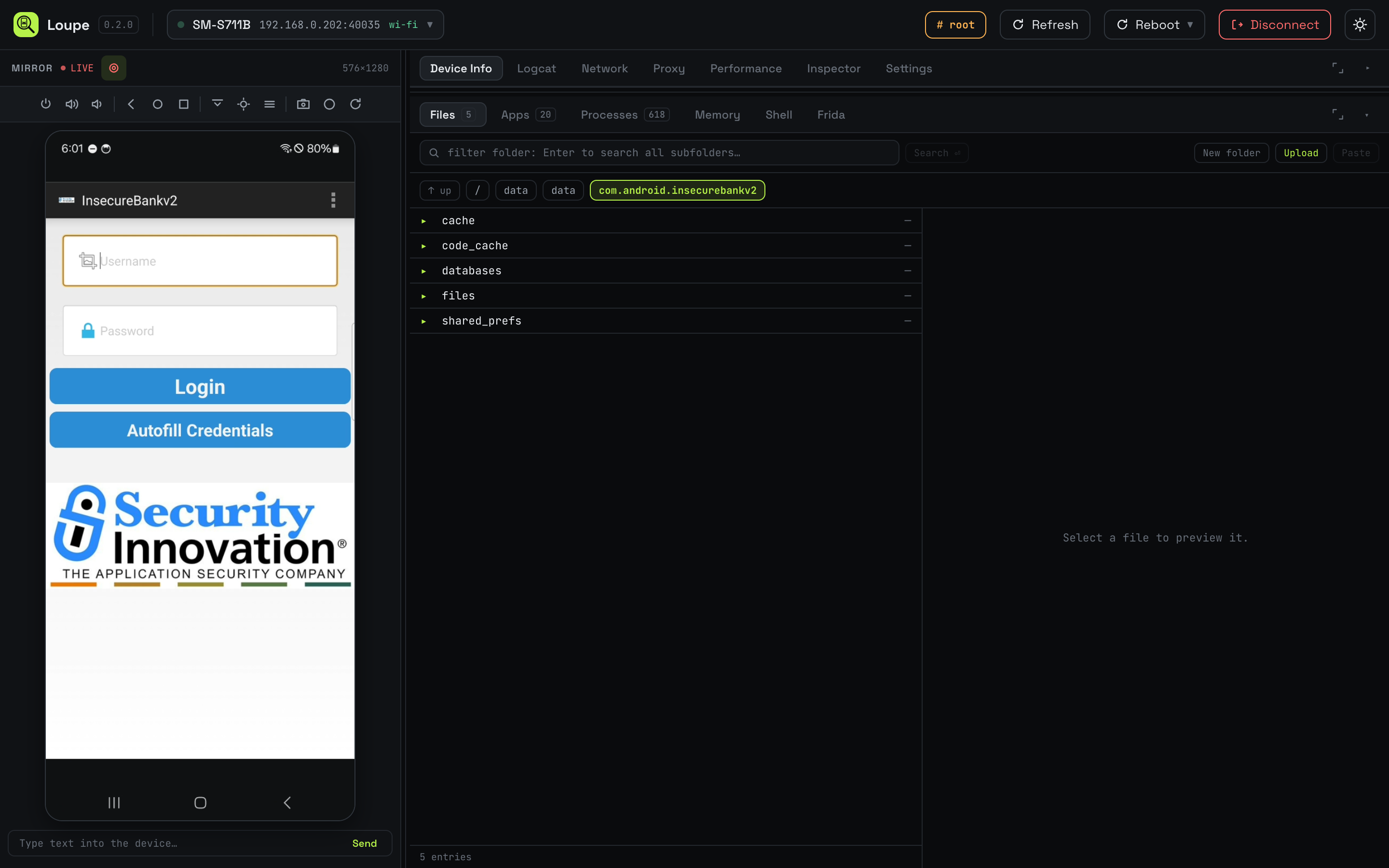
A file browser with search, upload, download, copy, move, and delete, with previews for the file types you actually run into during an assessment: images, text and config, HTML (rendered), PDFs, audio and video, and SQLite databases in a real table browser.
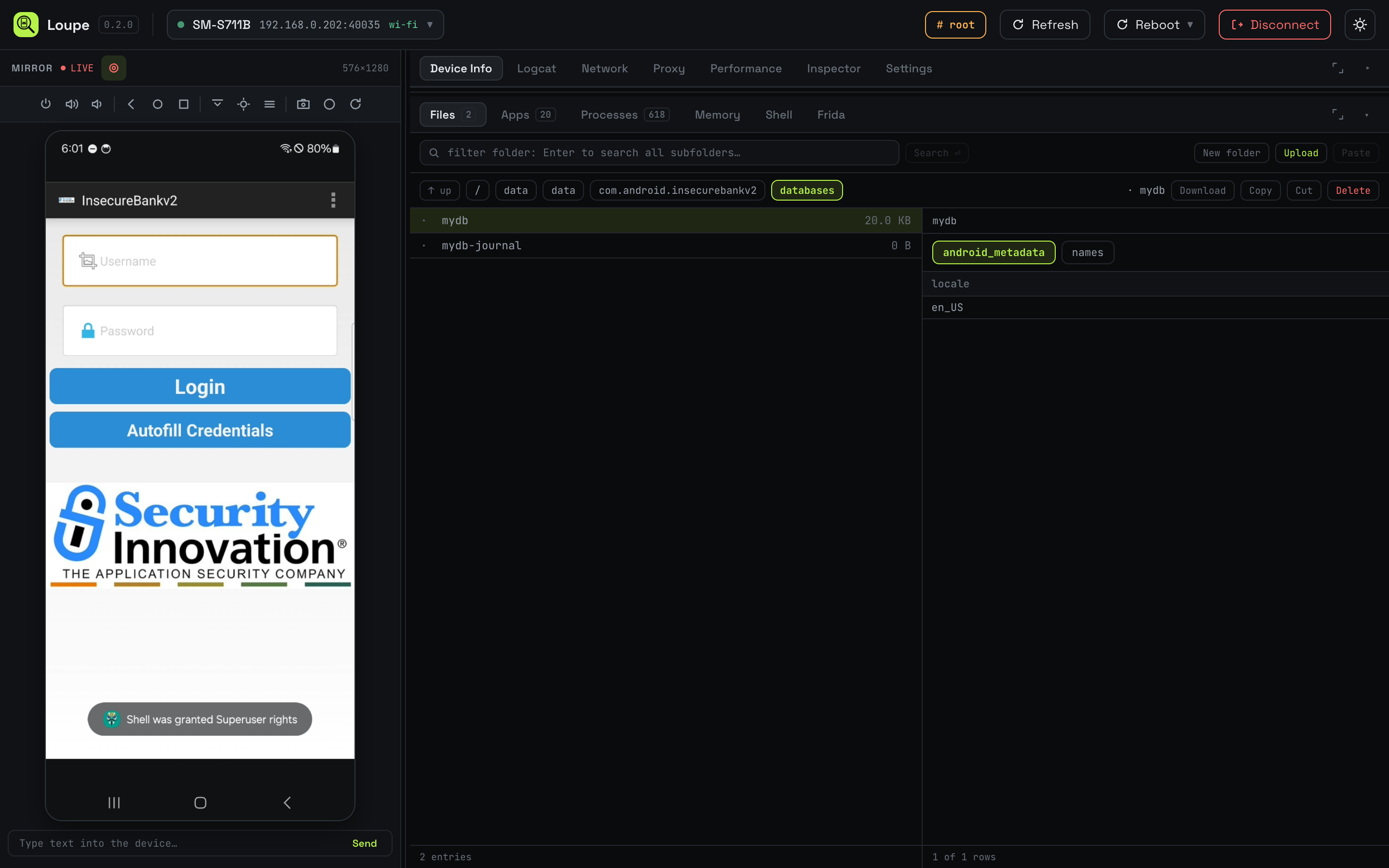
On a rooted phone I usually spend most of my time in /data/data/<package>/, which is where the app’s private state lives. Loupe knows this and lets me type a path or click through the crumbs:

InsecureBankv2 stores its user database in databases/mydb, which the sql.js preview reads without needing to pull the database to my local machine:
And its “server config” gets serialized to a shared preference file:
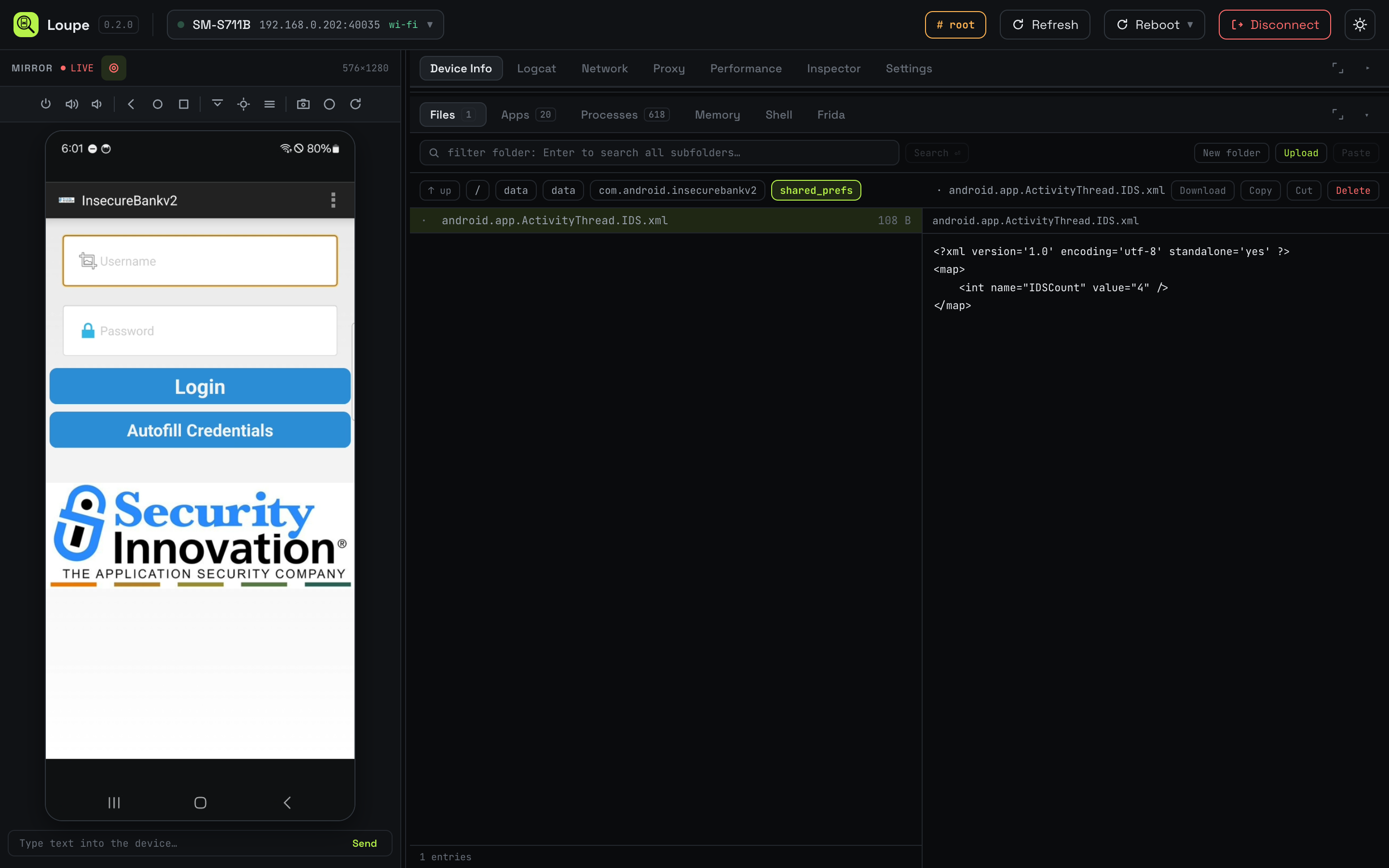
None of this is exotic. It’s just faster than adb pull → open in a viewer → repeat every time you want to check a value.
Apps
Lists user, system, or all packages, each with its launcher icon and a readable name, sorted by name. Clicking a package fills the right pane from dumpsys package: version, SDK levels, data dir, APK path, install and update timestamps, and the full permission list.
The row buttons do the operations I always want. Install APK in the toolbar opens a file picker and installs whatever you throw at it, which is great for dropping a new build without a terminal. Each row has launch, stop, and uninstall.

The detail pane header adds a data dir shortcut that opens the app’s private storage in the Files tab, an enable/disable toggle that reflects the current state, a clear cache button, and a clear data button.

Here’s the panel after searching for “insecure” and selecting the row:
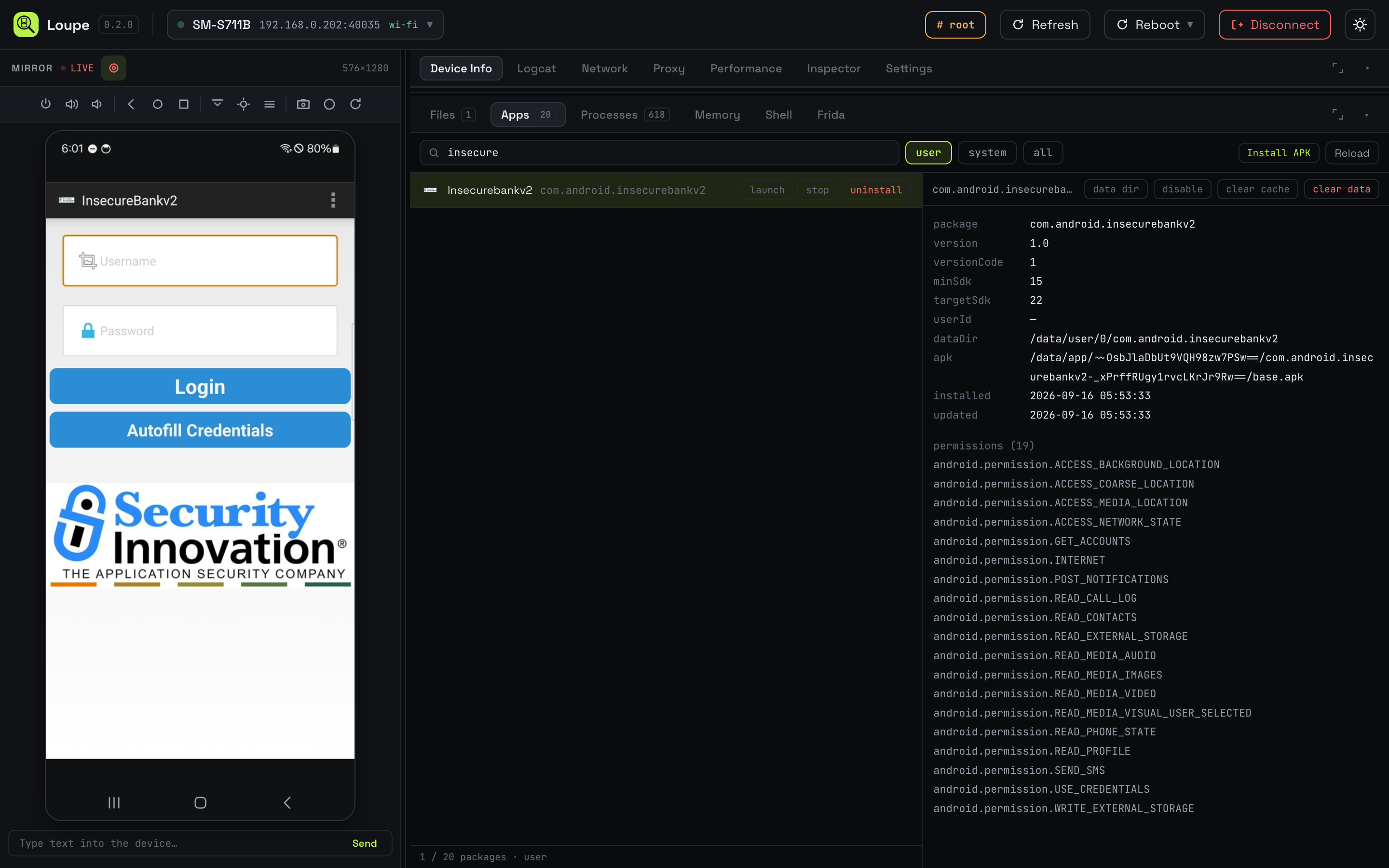
The dataDir value there is a clickable jump into the Files tab pointed at exactly that path.
Frida
The Frida panel is the one I’m most happy with, because installing and driving frida-server on a phone is the part of Android assessments I always fumble.
Loupe does the whole cycle. If frida-server isn’t on the phone, one button pulls the right architecture from the Frida GitHub release, pushes it to /data/local/tmp/, and chmods it. If it’s already there, it shows the version and offers “Update to latest”. Start and Stop are buttons, so there’s no terminal you can’t close.

A target dropdown lists your installed apps, so you don’t have to frida-ps -Uai before every run. The script area is a CodeMirror editor with JavaScript syntax highlighting; paste a script and hit Run, or paste a URL to a Frida CodeShare page, a GitHub .js file, or a Gist, and Loupe fetches it on Run. There’s a spawn toggle for scripts that need to hook before an app starts.

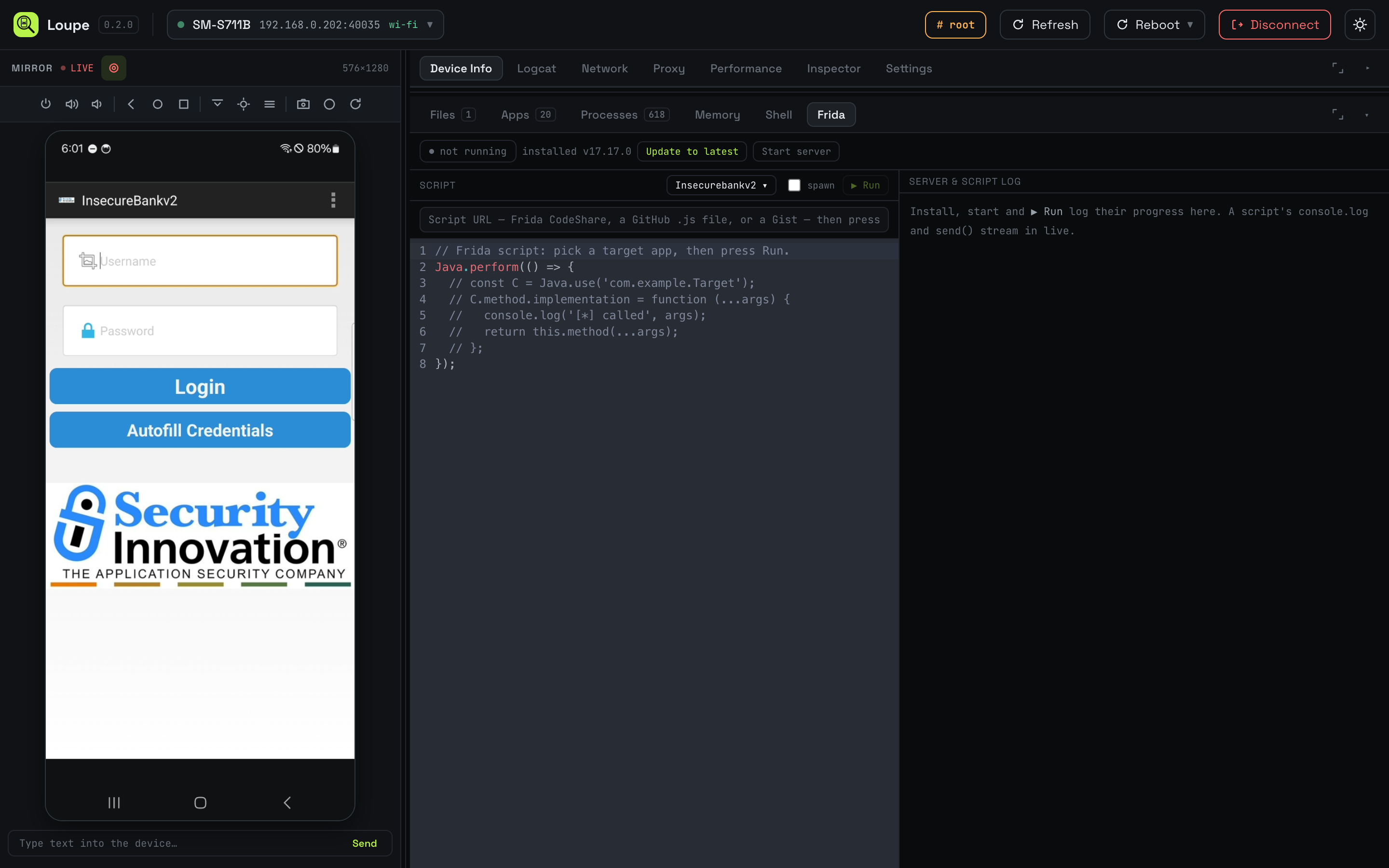
Since Loupe reaches frida-server through the browser’s own device connection instead of a host adb port forward, the same script works over USB and over Wi-Fi with no code change. And because a lot of the older CodeShare scripts still use the pre-Frida-17 Java.perform API, Loupe restores the Java bridge and the other globals Frida 17 removed, so old scripts keep working without a rewrite.
Proxy
Setting up an intercepting proxy on a phone always used to be:
- Find your laptop’s IP.
- Long-press the Wi-Fi network, choose “Modify”, scroll to Proxy, type it in, save.
- Realize you typed the wrong port.
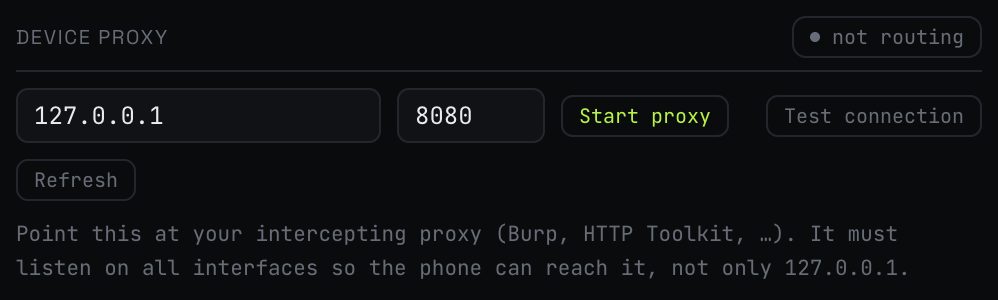
The Proxy tab has two sections. The first is a device proxy toggle: type your machine’s IP and port, hit Start, and Loupe sets it as the global proxy for the whole device with settings put global http_proxy. Stop pulls it back down. A Test connection button opens a TCP socket from the Loupe bridge to the proxy and reports whether it’s actually reachable, which is the failure mode I hit most: forgot to switch Burp from “loopback only” to “all interfaces”.
The second is a CA certificate installer. Point it at a .der or .pem and it installs it into the system trust store so HTTPS decrypts.

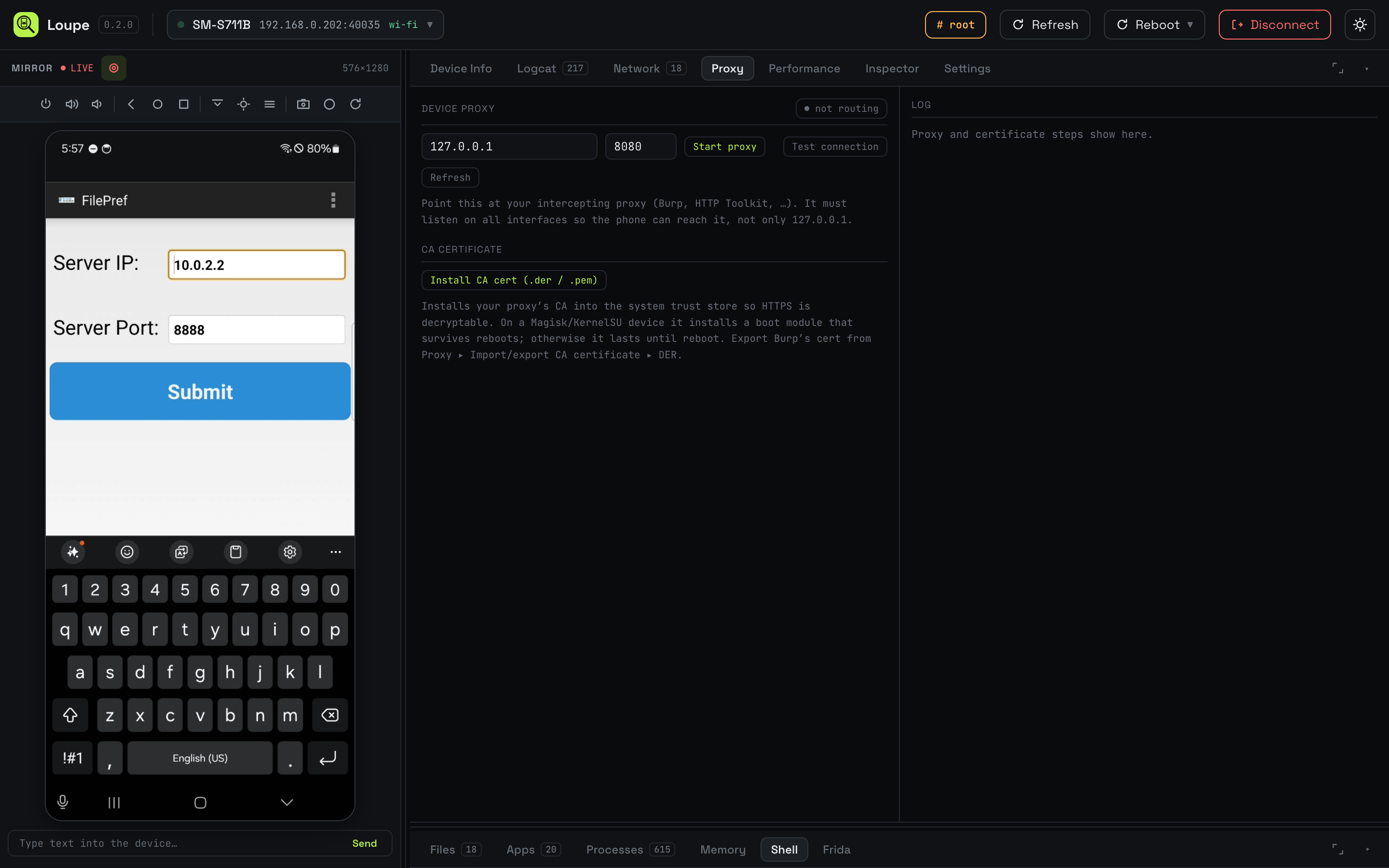
On a Magisk or KernelSU device, Loupe writes a small boot module (loupe-cacerts) that lays a tmpfs over /system/etc/security/cacerts at every boot and drops the CA in. So the cert survives reboots without repackaging the system partition. If Magisk isn’t there, Loupe falls back to a one-shot tmpfs that lasts until the next reboot, which is still enough for one session.
If you’ve ever fought Android’s Conscrypt APEX trust store to make a Burp cert stick across a reboot, you know why this is a nice thing to have.
Inspector
Dump the current view hierarchy into a tree, click a node to see its attributes, resource-id, bounds, text, and traits.

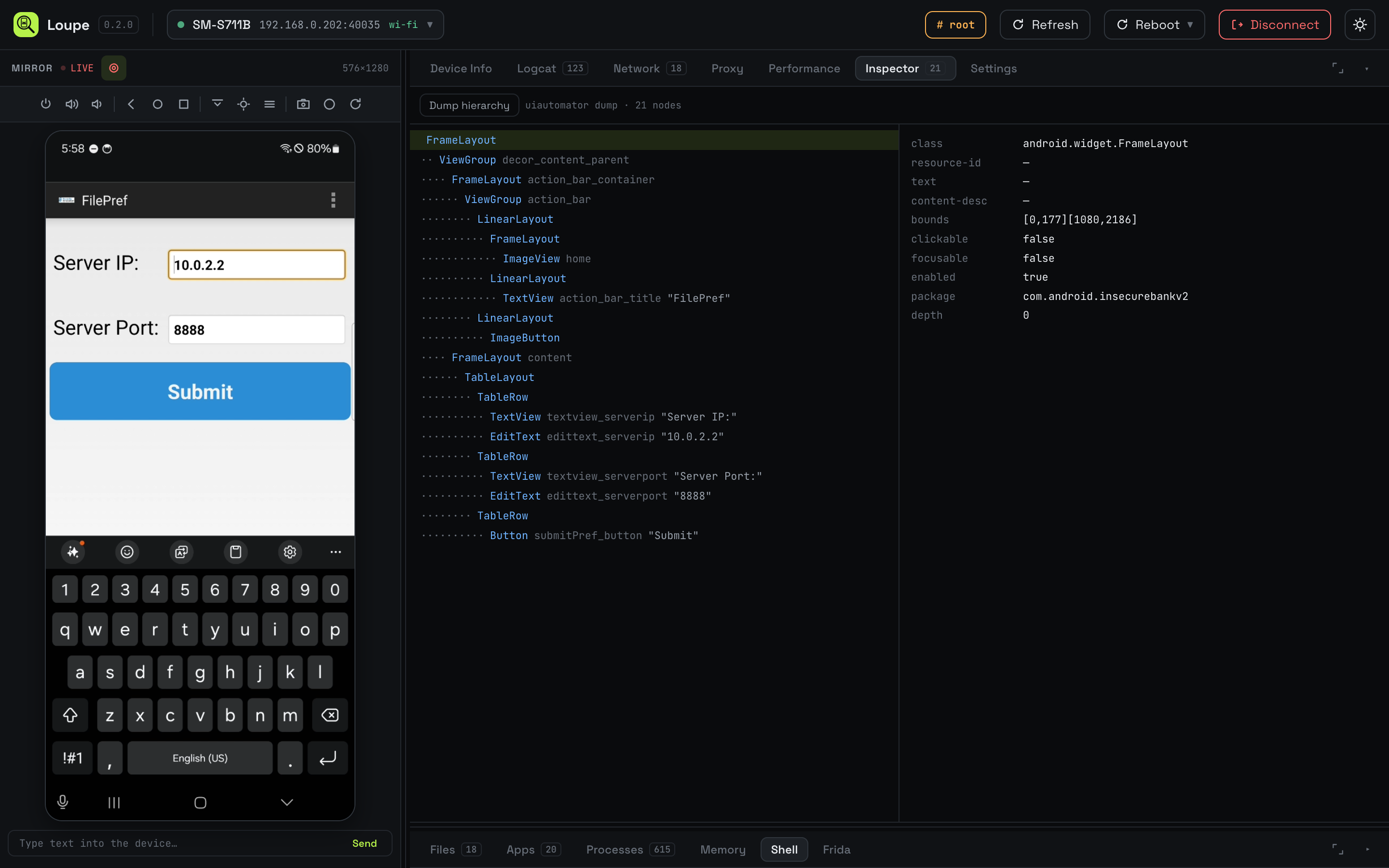
The tree itself is nothing new compared to Android Studio’s Layout Inspector. The useful bit is that it opens in the same window as the mirror and logcat, and a fresh dump is one click away every time the app’s UI changes.
Performance
A live dashboard sampled every two seconds:
- CPU and memory with sparklines.
- The foreground app’s FPS, computed from
dumpsys gfxinfo. Idle apps sit near zero, which is correct. - Battery: level, status, health, temperature, voltage, technology, power source.
- Network: connection type, SSID, IP, signal, link speed, live throughput.
- Storage on
/data. - Uptime and load average.
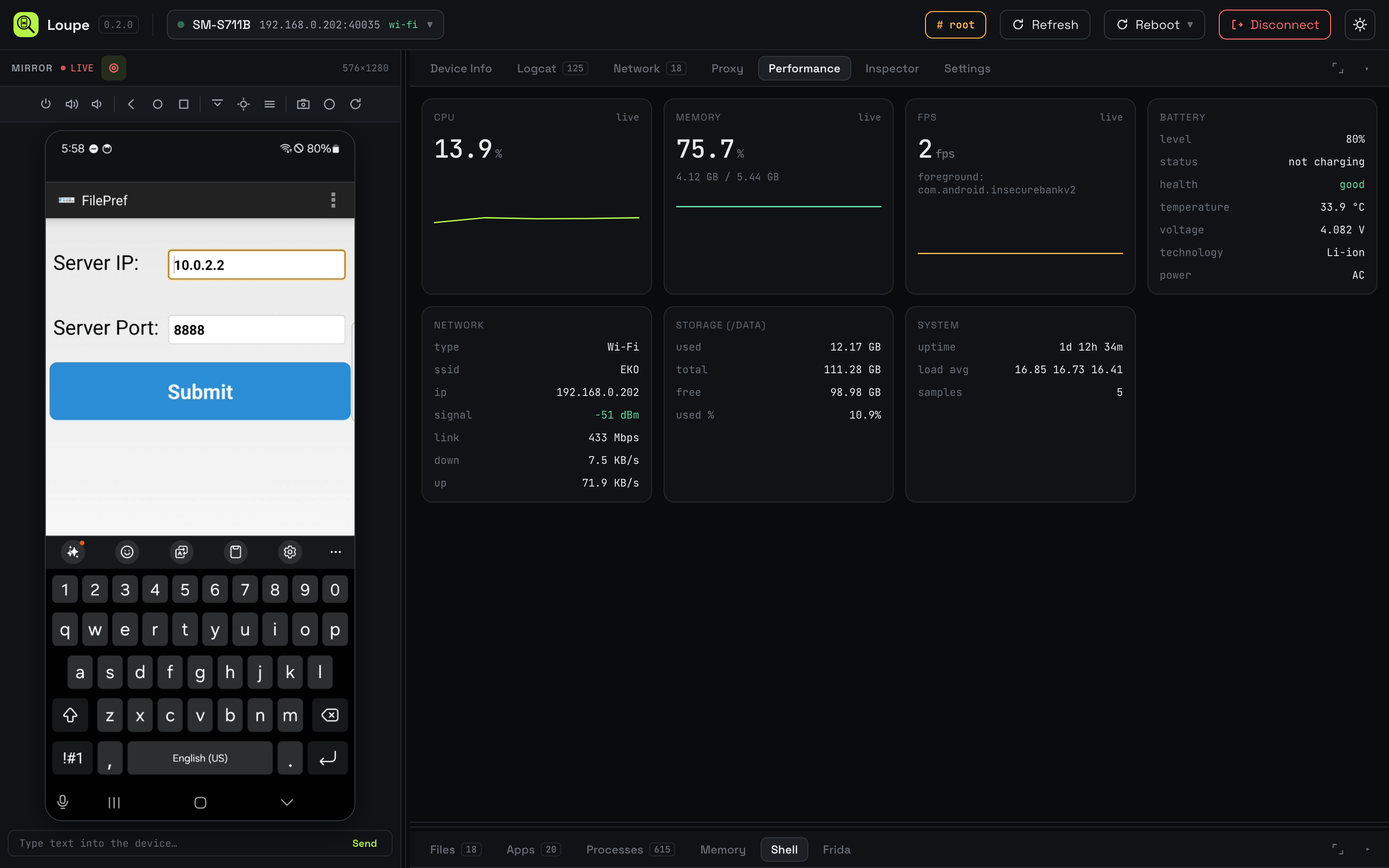
I use this less for “performance testing” and more as a health strip while the phone is doing something. If throughput jumps while an app claims to be idle, that’s a hint. If temperature spikes during a Frida script, that’s another.
Settings
An editor for the system, secure, and global namespaces of the Settings provider, the same thing you’d otherwise poke with adb shell settings put. Search across a namespace, pick a key, edit the value or delete it.

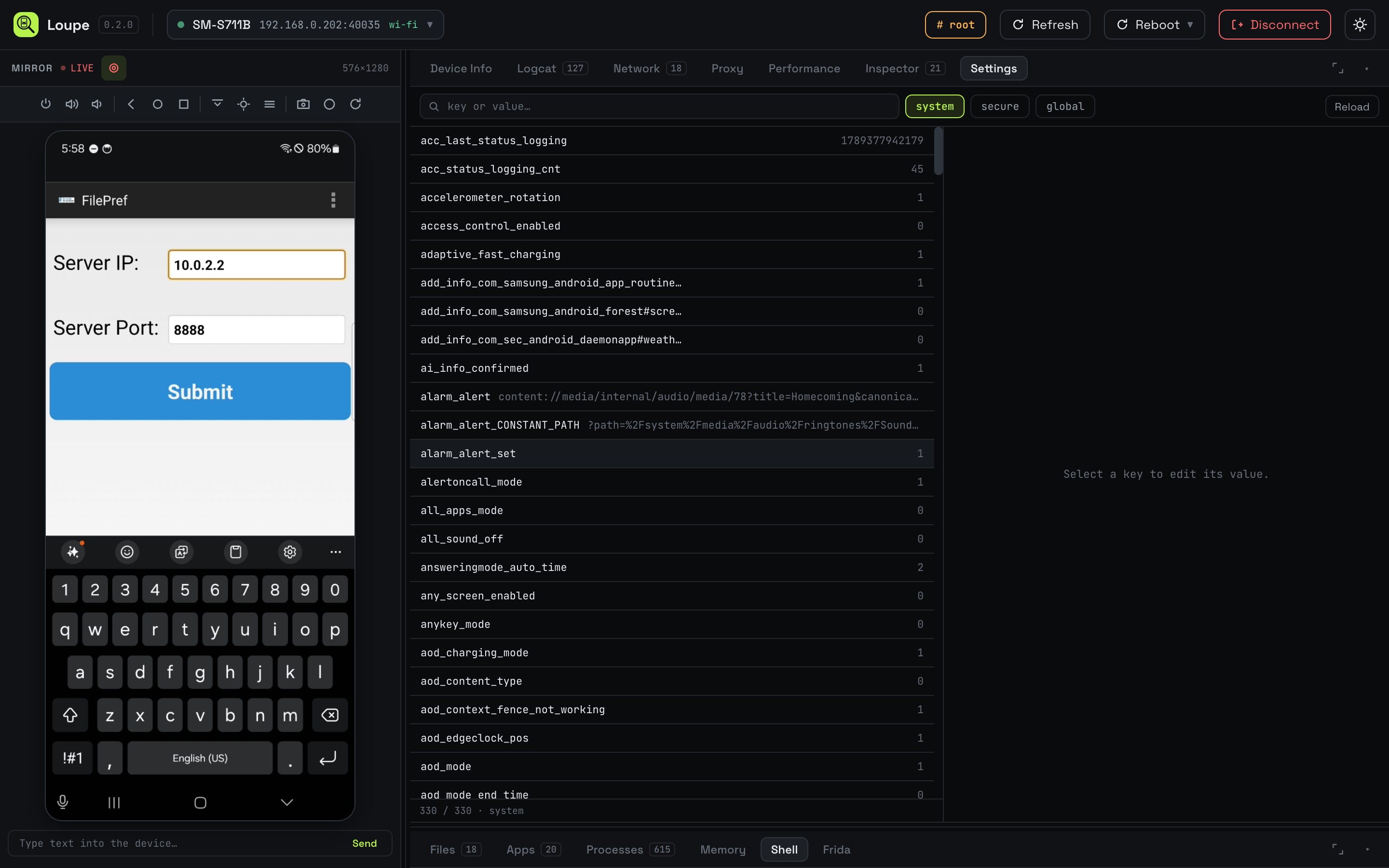
This is useful for the boring plumbing of a test setup: setting stay_on_while_plugged_in, flipping development_settings_enabled, dropping airplane_mode_on, or nuking whatever weird global_http_proxy_* residue an earlier proxy pass left behind.
Shell
A real adb shell in a tab, with command history. The prompt shows # when the elevated shell is on and $ when it is not, so you always know which permission level your command is running at.
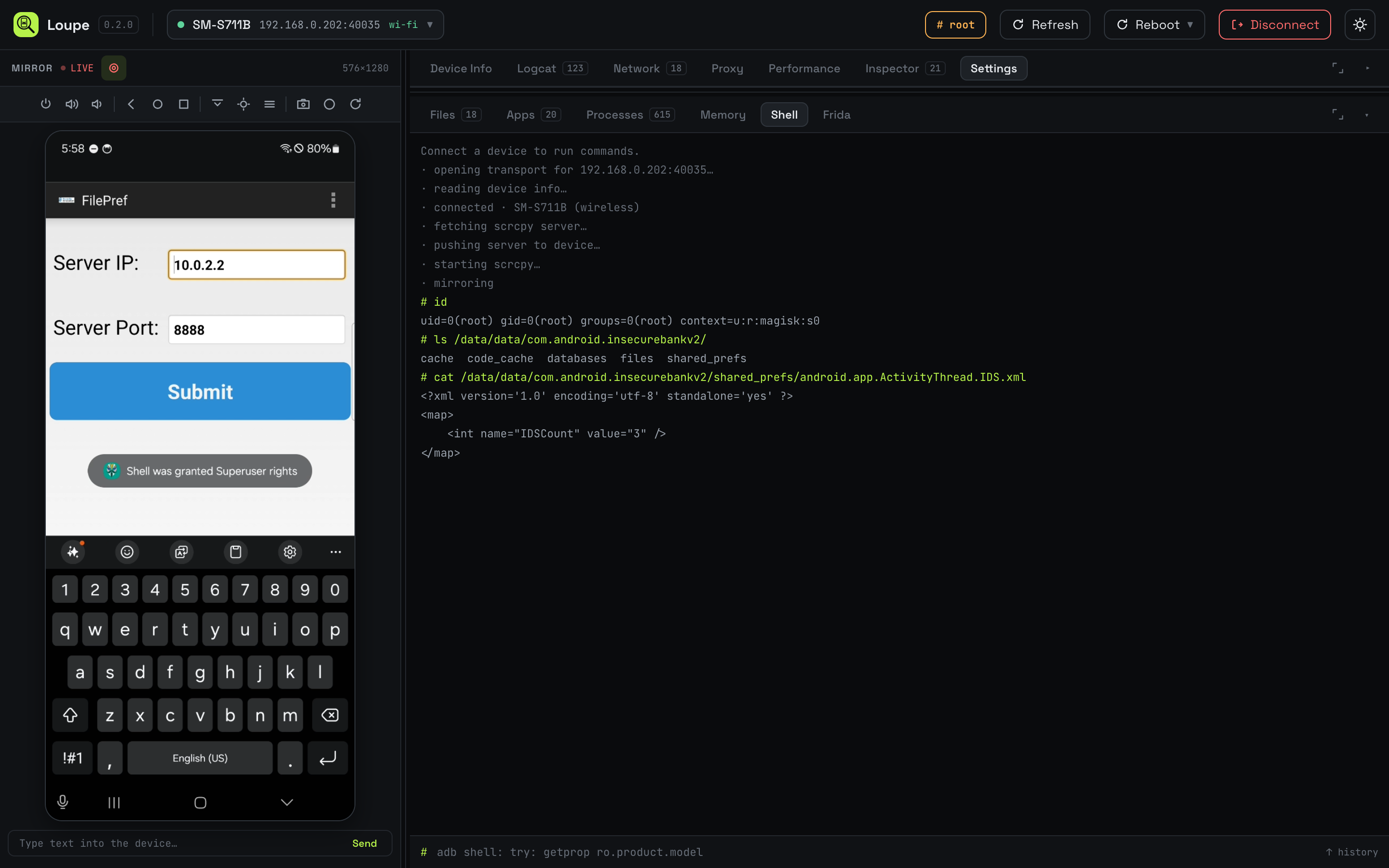
Nothing exciting about it. It sits in the same window as everything else, and it’s root when the device is rooted.
Processes and Memory
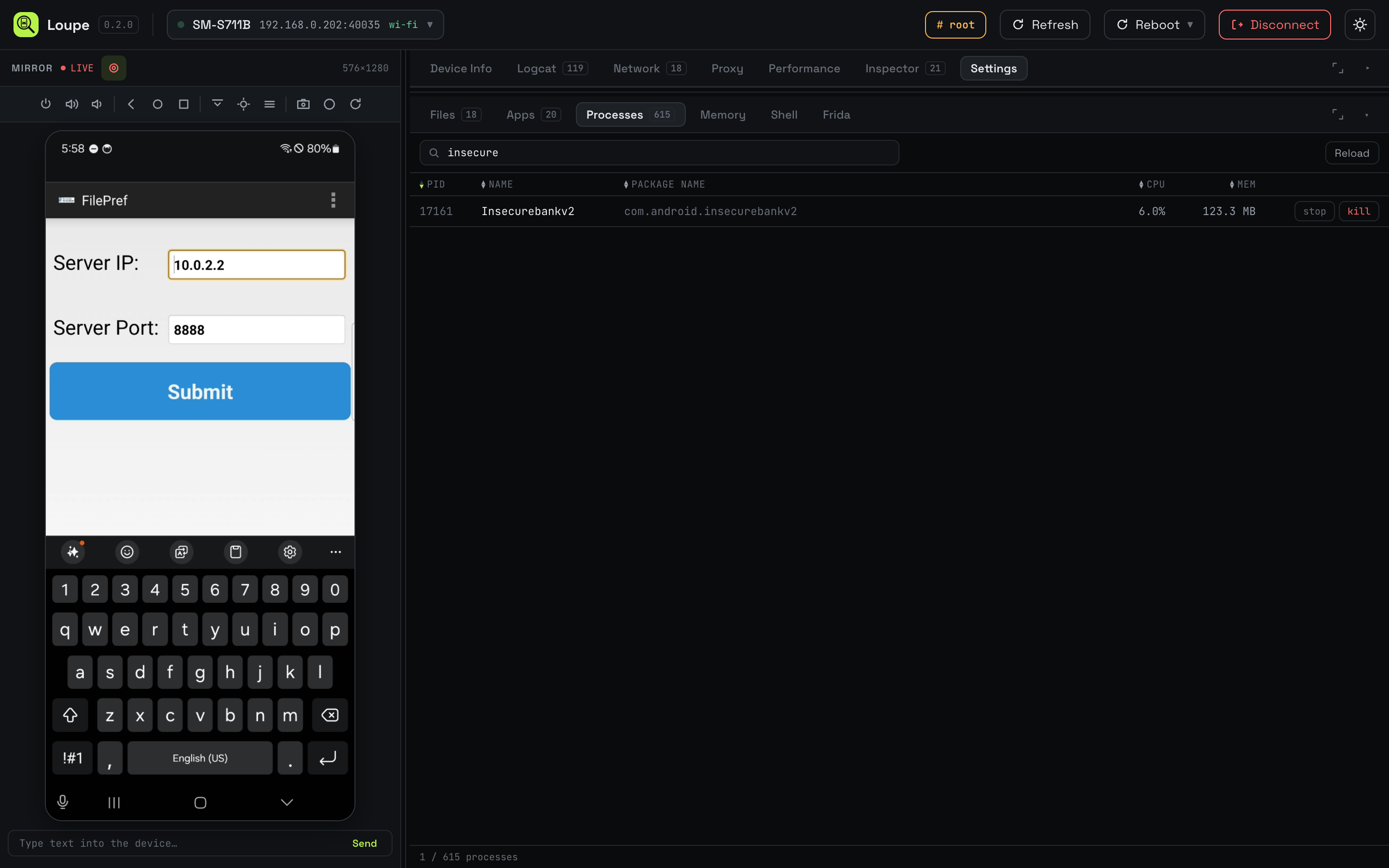
The Processes tab is a live process table with the app name, package, per-process CPU and memory, sortable by any column. Kill or force-stop from the row.
The Memory tab reads dumpsys meminfo for a selected process, plus /proc/<pid>/maps. When the app is debuggable, it can also request a heap dump with am dumpheap. When it isn’t, it writes an ELF core file that opens in gdb, LLDB, radare2, or Ghidra.
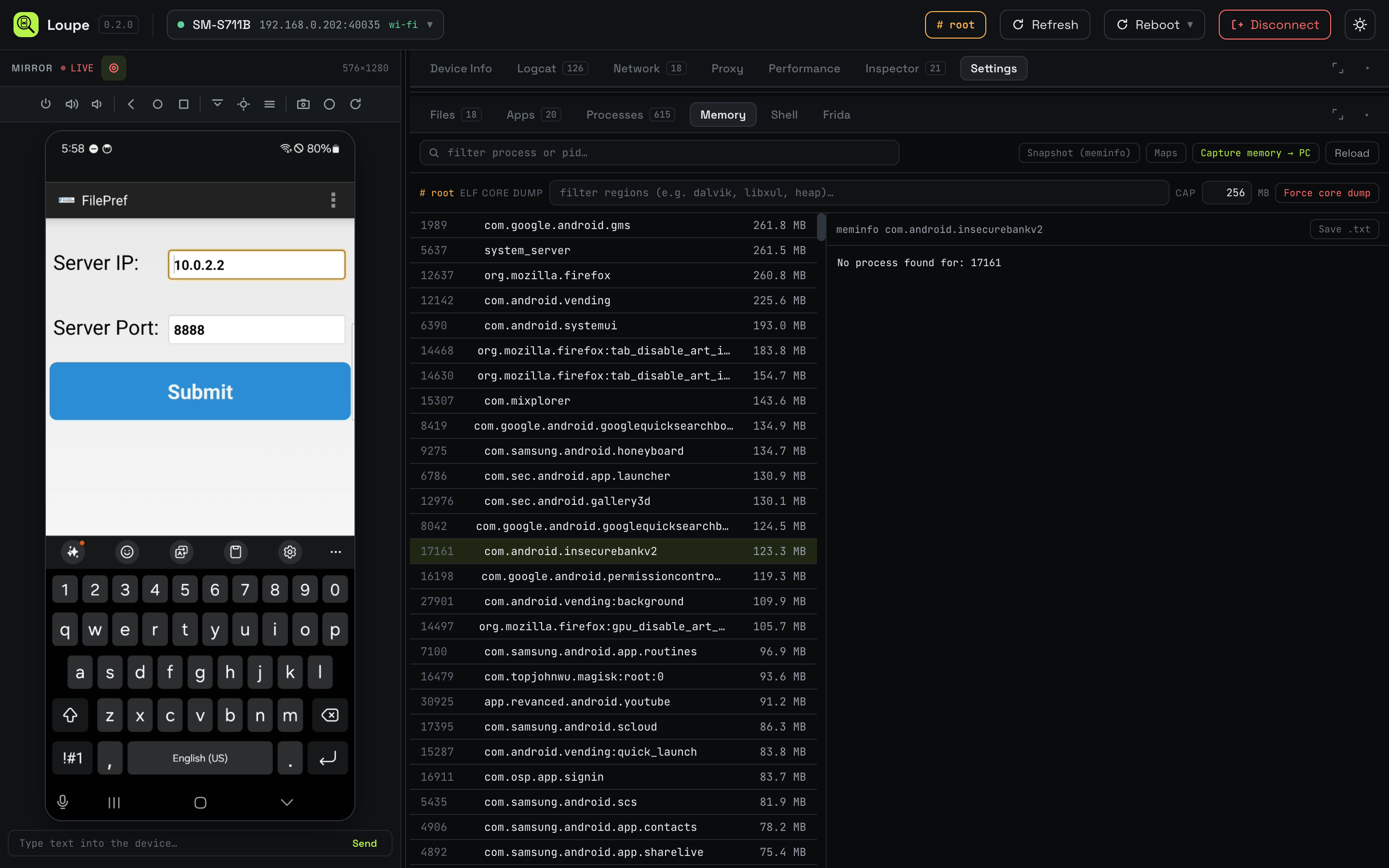
I’ve used these two mostly to answer “what actually got spawned when I tapped the button” and “which library is holding that string”, respectively.
Reboot Menu
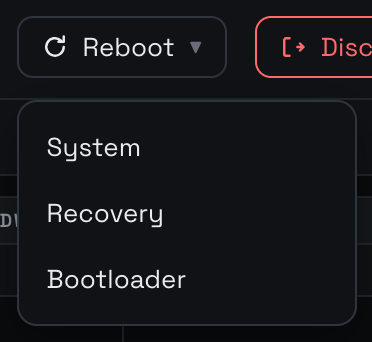
Small thing, in the header: a Reboot menu with System, Recovery, and Bootloader. If you spend any time flashing modules or bouncing between recovery and normal boot, having this one click away in the same tab is a small daily quality-of-life win.
Root Aware
On a rooted device, Loupe detects su on connect and starts routing operations through it: reads into /data/data/, kill and force-stop of processes outside your own UID, non-debuggable heap dumps, browsing across app sandboxes. The # root chip in the header tells you when it’s on. When it isn’t, the same tabs work, they just show fewer things.
Putting it Together
Here’s an end-to-end run against InsecureBankv2, because the individual screenshots don’t quite land the point.
I connect the phone (Wi-Fi in this case), pick the paired entry from the device menu, and the header goes green with a # root chip because the phone is rooted with Magisk. I hit Start mirroring and the phone shows up on the left. Then:
- Install the app. Apps tab, Install APK, pick
InsecureBankv2.apk. It shows up in the list with an icon and a name a few seconds later. - Poke it. Launch it from the row’s launch button. The mirror shows the login screen. I type
jack/Jack@123$(its baked-in credentials) using the “Type text into the device” input at the bottom of the mirror pane, or I just tap on the phone. - Watch what it writes to logcat. Switch to Logcat, filter by package. The FilePref transitions and the login events land in real time.
- Read its private storage. Files tab, then
/data/data/com.android.insecurebankv2/. Itsshared_prefs/*.xmlfiles preview inline. Thedatabases/mydbopens in the SQLite browser with tables listed on the right and rows on the left. - Hook a method. Frida tab. Pick InsecureBankv2 from the target dropdown. Paste a small Java hook into the script editor, hit Run, and its output streams into the log pane on the right as the app calls the method.
- Turn on the proxy. Proxy tab. Type in the laptop’s IP and Burp’s port. Hit Start. The app’s requests appear in Burp. Hit Install CA cert, point at Burp’s DER export, and the CA gets a Magisk module. Reboot from the header’s Reboot ▸ System menu, and the cert is still there afterwards.
None of that is new. All of it, other than the reboot, happens without alt-tabbing or opening a terminal.
What it’s Built On
- ya-webadb for the ADB protocol over WebUSB and for the scrcpy client. Without this project Loupe would not exist.
- scrcpy for the screen mirror.
- Frida and frida-node for the instrumentation panel.
- sql.js for the SQLite preview.
- React and Vite for the UI.
The local bridge is a small Node process the dev server also starts, so the browser page can pair over Wi-Fi (mDNS), test a proxy TCP endpoint, and drive frida-node from the same origin as the page. The browser tab does everything else.
What it Doesn’t Do
A few things worth calling out.
Loupe is not a Play Store client. It won’t download apps for you.
There’s no SSL unpinning built in. I had one in an earlier version and I took it out. A universal script that works against every app doesn’t exist, and shipping one that lies about that is worse than not shipping one at all. The Frida panel is right there if you want to run yours.
It’s also not a way around ADB debugging being off. That’s a phone setting. If USB debugging is off, no browser tool can turn it on for you.
Conclusion
Loupe is up at github.com/capt-meelo/loupe. If it’s useful, tell me. If it’s missing something you’d use every day, open an issue.
That’s all. Thanks for reading!